

What Your SD Card Contains
Your ResMed machine's SD card contains detailed breath-by-breath data that goes well beyond the summary stats in the MyAir app. Here's what's recorded:
- Flow rate waveform: The actual shape of each breath — the most valuable signal for detecting subtle issues like UARS.
- Pressure data: Shows how your machine's auto-titrating algorithm responds (or doesn't) to events.
- Leak rate: Even small mask leaks can degrade therapy effectiveness.
- Tidal volume & respiratory rate: How much air you're moving per breath and your breathing frequency.
- Event flags: Apneas, hypopneas, RERAs, and large leaks — each with a precise timestamp.
How to Import Your SD Card
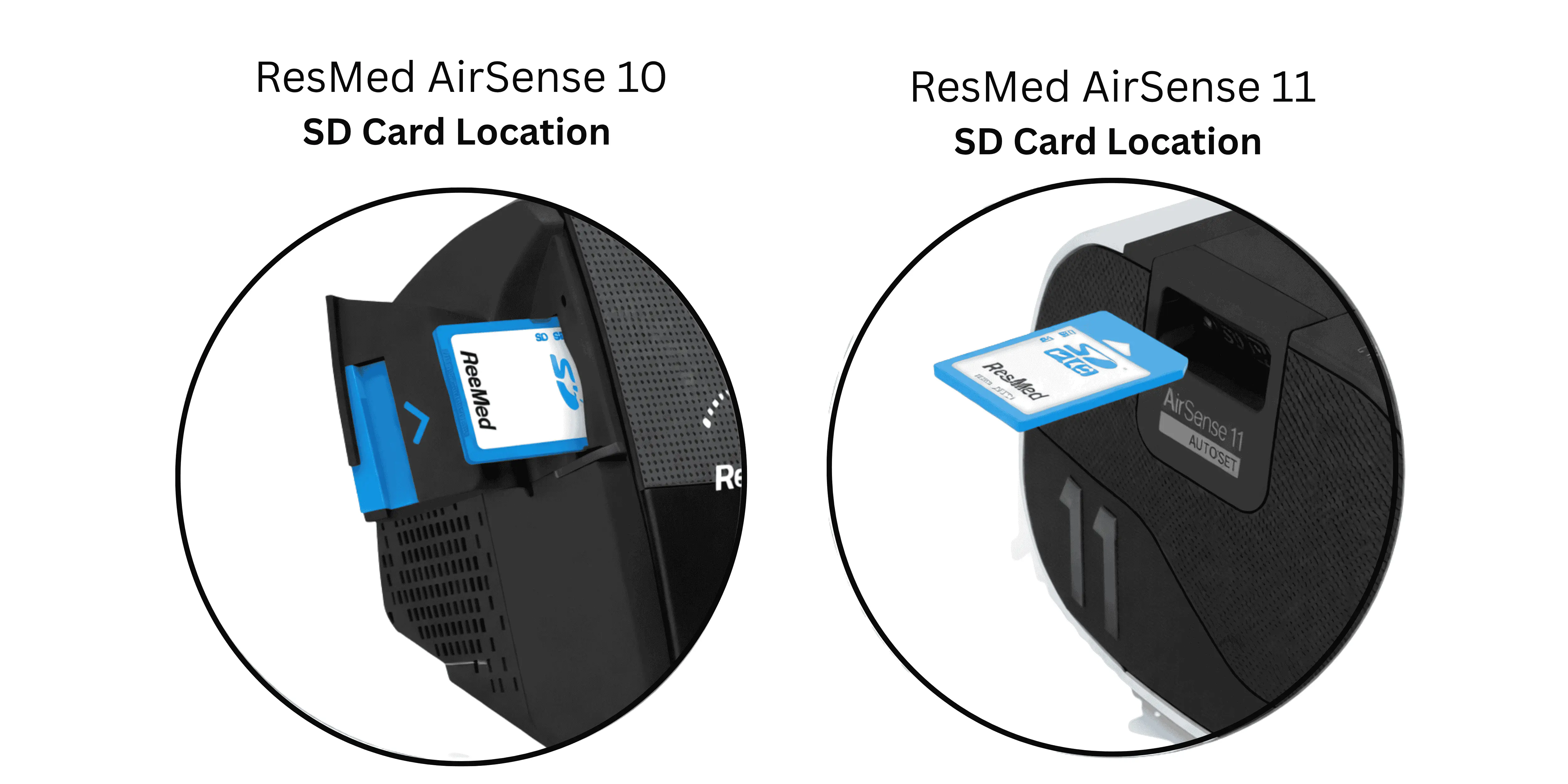
1. Power off your CPAP machine and remove the SD card (check your device manual for the slot location)
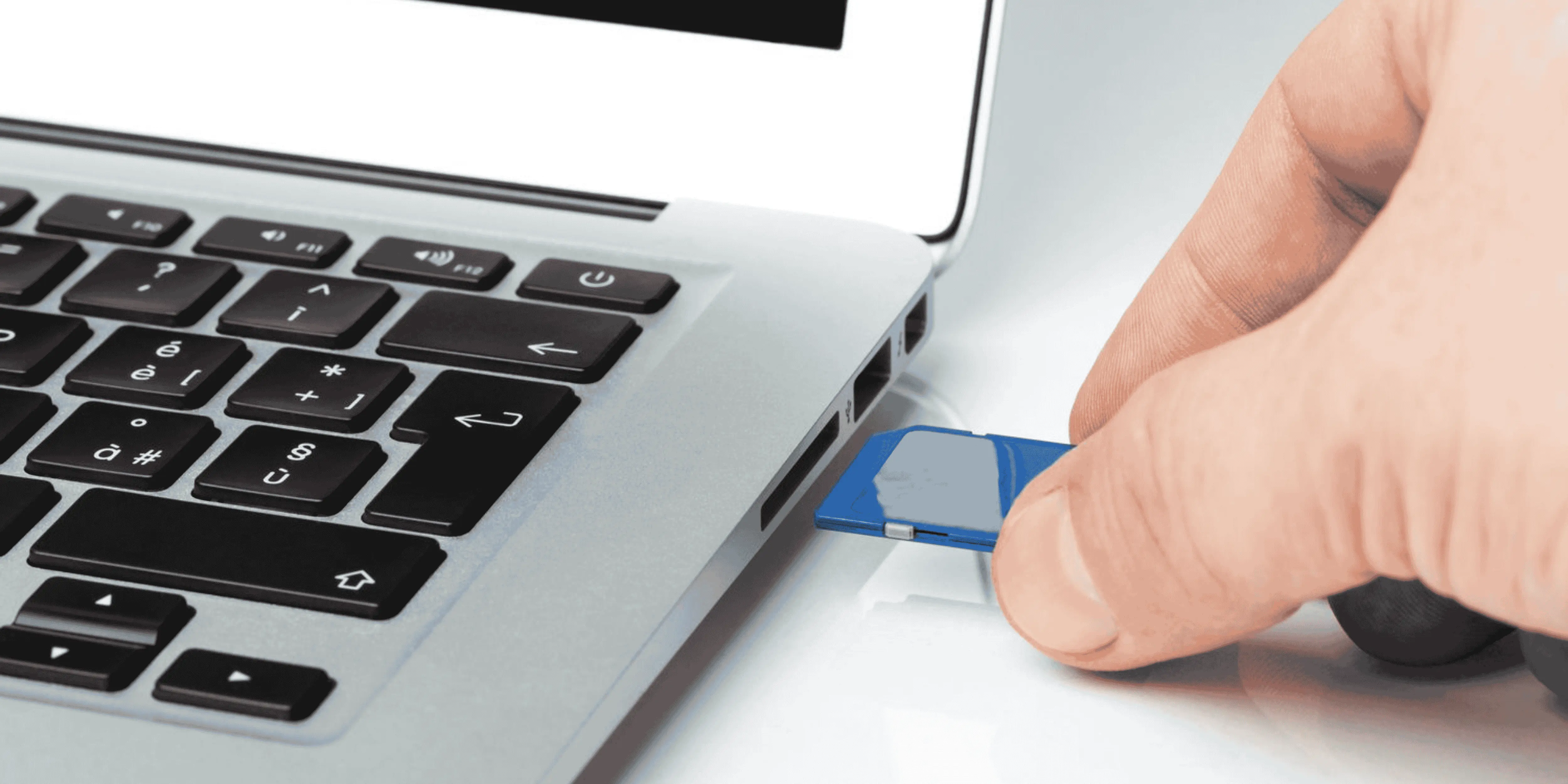
2. Insert the SD card into your computer's card reader (use a USB adapter if your computer doesn't have a built-in slot)
3. Open CPAP Insights and click "Select SD Card" on your dashboard
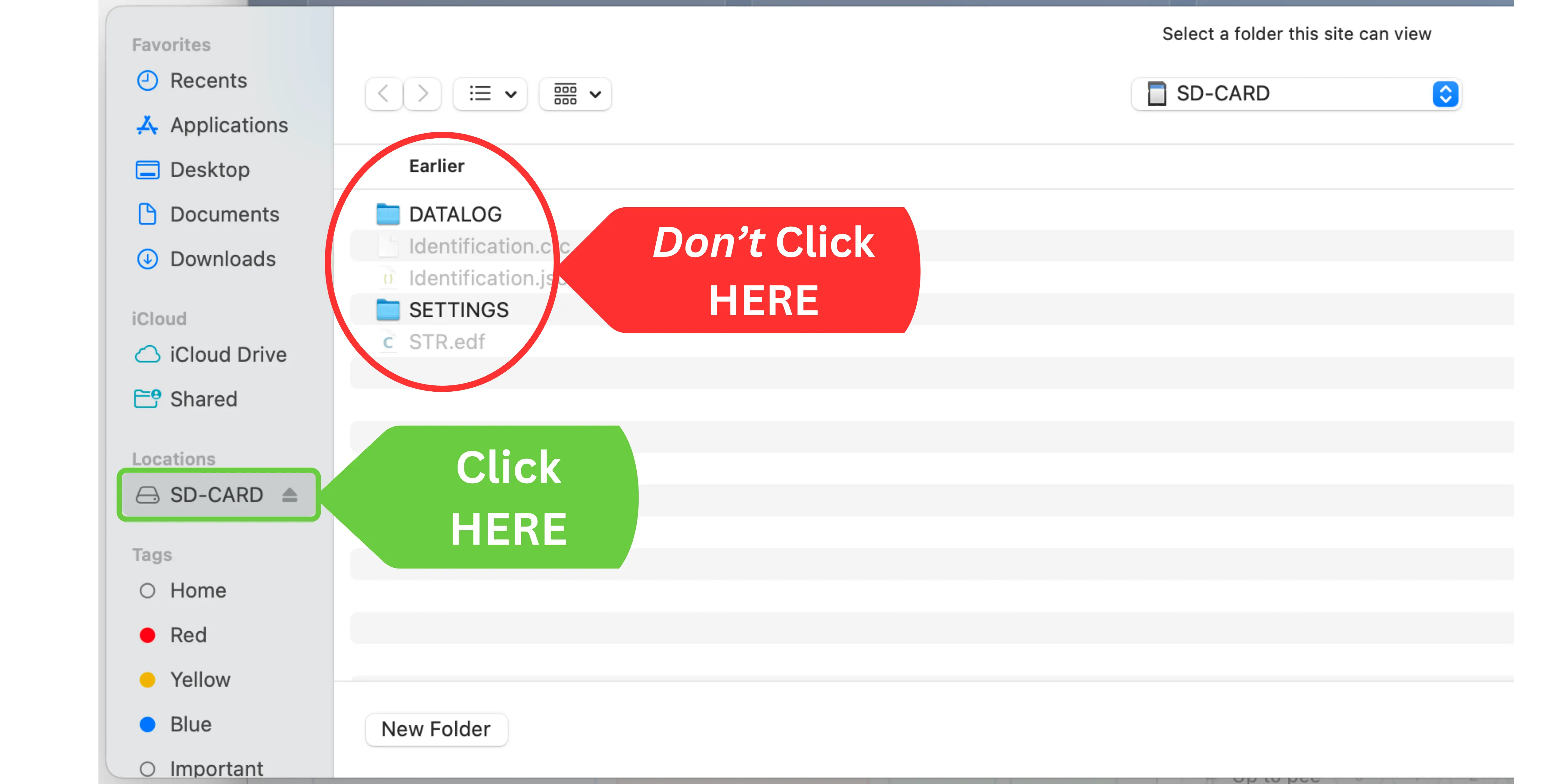
4. In the file picker, select the SD card drive — don't open any folders inside it
5. Grant read permission when prompted, and the app will scan and import all available nights
What to Look For
Start with the overview stats on your dashboard — AHI, leak rate, and usage time give you the big picture. Then dive deeper:
- Use Build a Graph to overlay signals like pressure and flow limitation over time
- Check for sustained flow limitation episodes that the machine's algorithm didn't respond to
- Look at leak events — even brief large leaks can disrupt therapy
- Ask Sleep Doc AI to interpret the patterns specific to your night